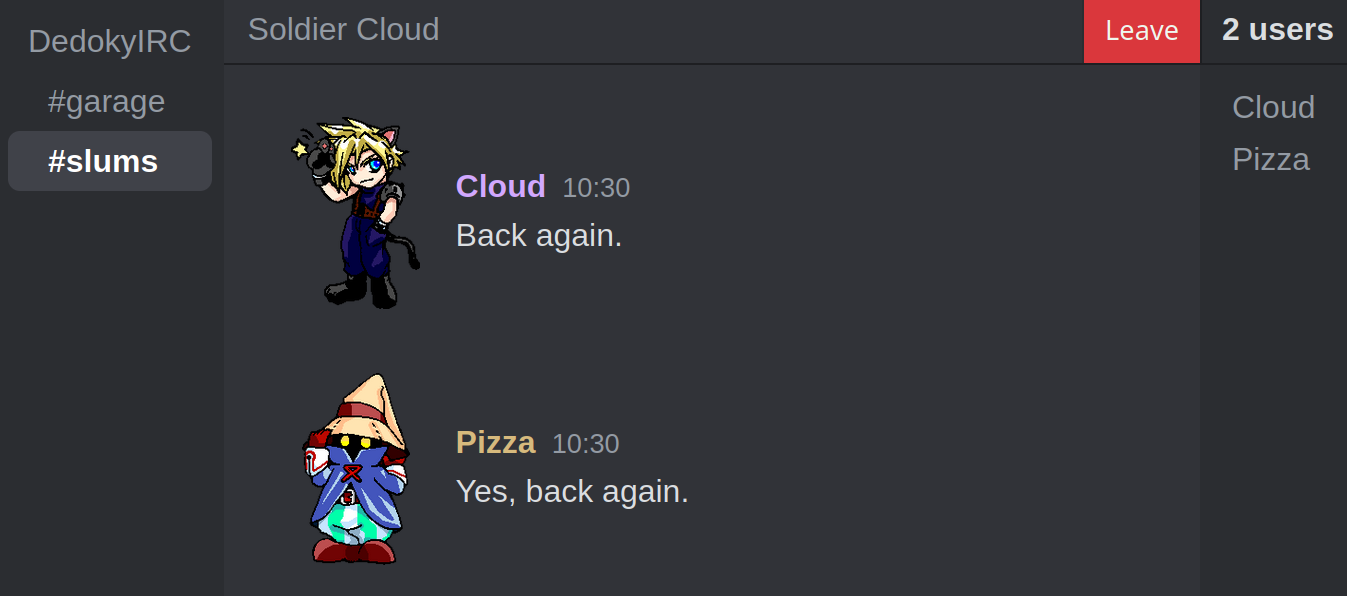
Live IRC Chat
The browser chat is the easiest way to join the network. You can connect in a few seconds with just a nickname. This page gives a quick overview of how it works before you jump in.
Open Live ChatThis is a web-based IRC client that connects to the Comic Chat server. It lets you join the network from your browser and chat with users who are running Microsoft Comic Chat, as well as people using regular IRC clients. You do not need to install Comic Chat to use it. Just pick a nickname, connect, and join a room.
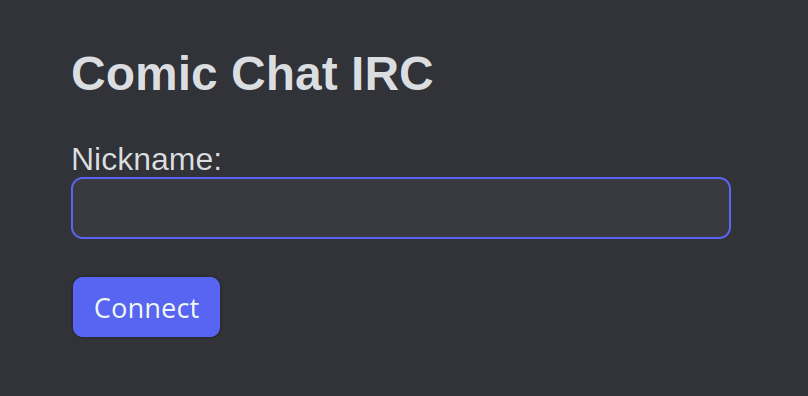
Open the live chat page, type the nickname you want to use, and click Connect. That is all you need to get started.
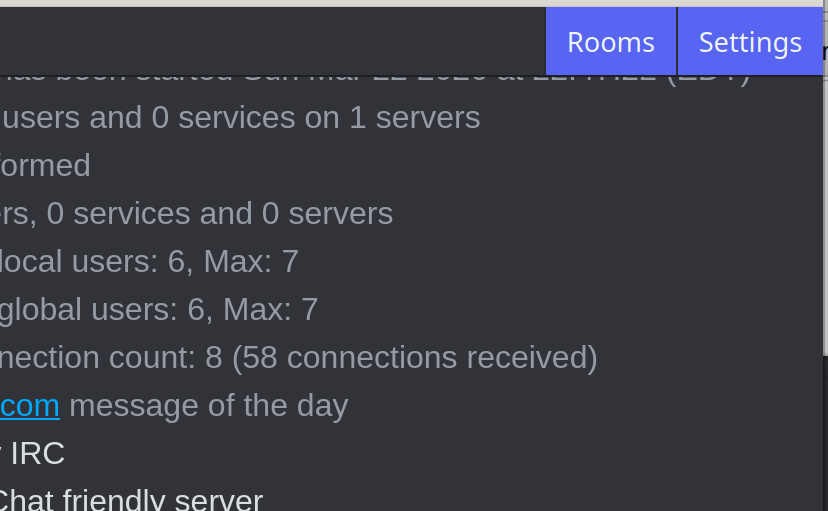
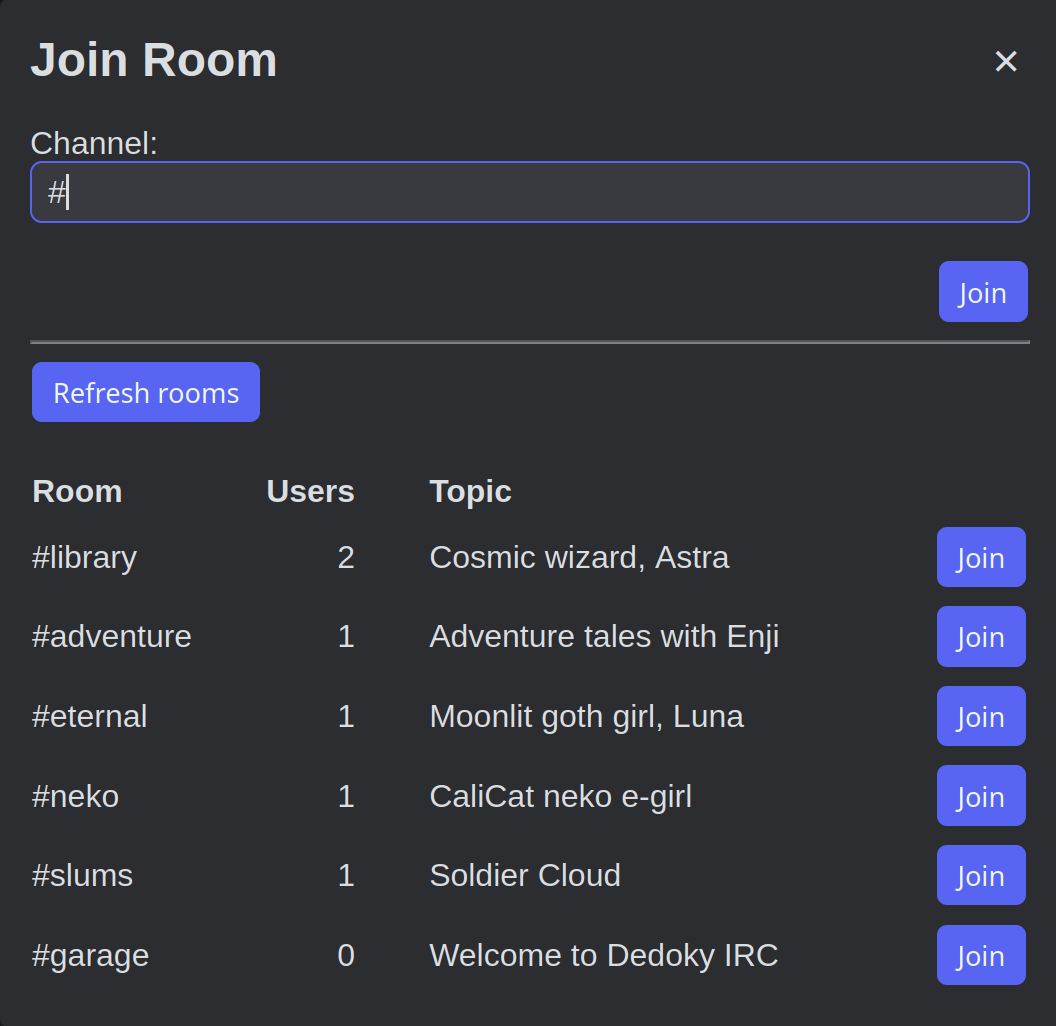
After connecting, click the Rooms button in the top right. That opens the room browser so you can see what channels are available.
The room list shows the available channels, user counts, and topics. Click Join beside any room, or type a channel name manually at the top.
On smaller screens, the room list may collapse into a narrow sidebar. Tap or click that sidebar area to open your room list.
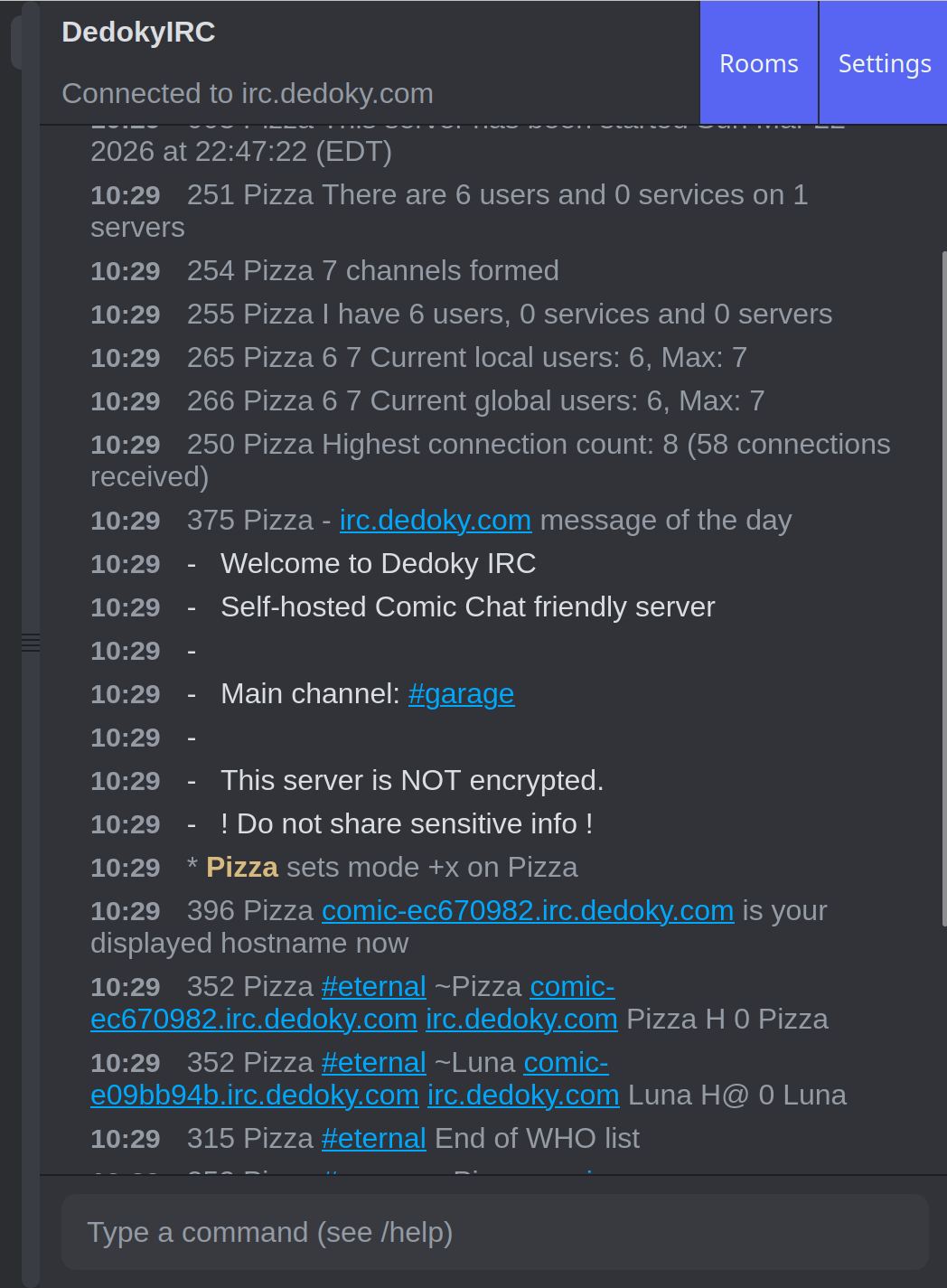
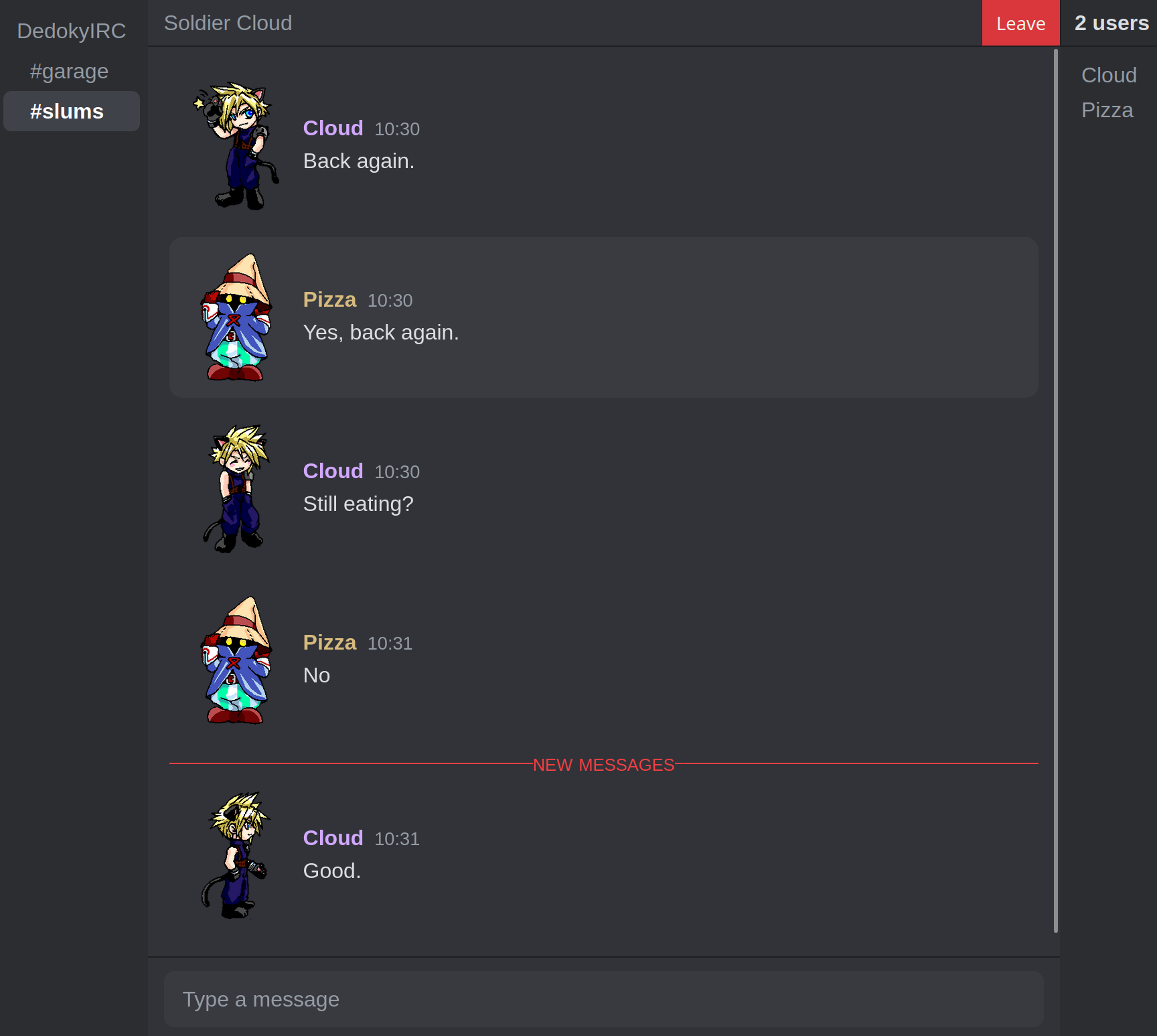
The room list shows the channels you are currently connected to. Click any room in that list to switch between them.
To leave the current room, use the red Leave button in the top right of the room view.