Get Microsoft Comic Chat
To get started, download and install the original Microsoft Comic Chat client. Then enter your server and nickname, connect, and start chatting!
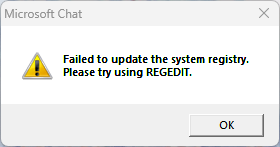
Download mschat25.exeWhen Comic Chat starts on newer versions of Windows, you may see a registry warning popup. This is normal and does not prevent the program from working.
Just ignore the warning and continue.
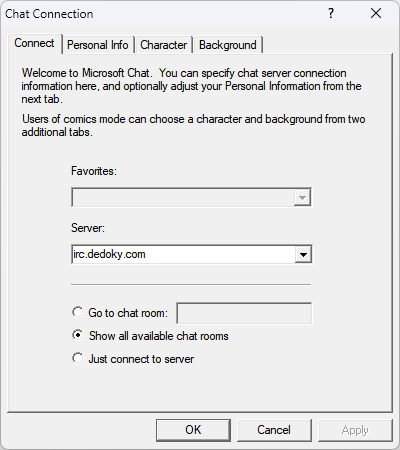
After Comic Chat fully opens, the connection window will ask for the server details. Enter the IRC server you want to use there.
If you are joining through this site, the recommended server is:
irc.dedoky.com
For most people, selecting Show all available chat rooms is the easiest way to get started.
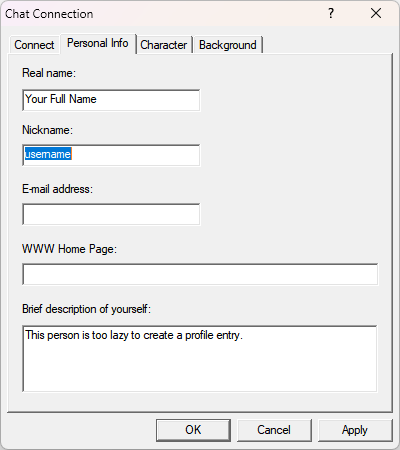
Choose the nickname you want to use in chat. The other personal information fields are optional.
Once your server details and nickname are set, you are ready to connect and start chatting.
Once your nickname and server are entered, connect to the server and choose a room. At that point, you are in and ready to chat.
The remaining panels below are optional reference information for changing settings later.
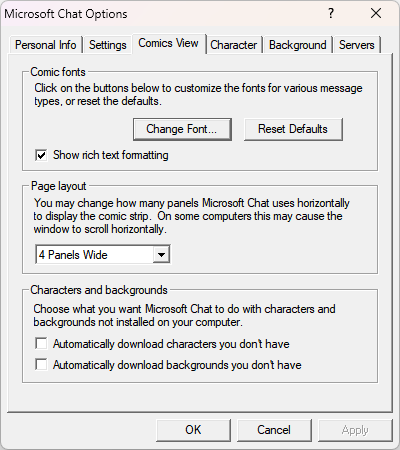
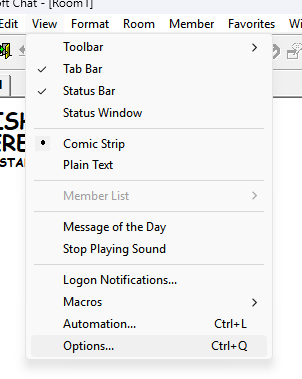
If you want to review or change settings later, open the menu and go to the Options window. That is where Comic Chat keeps its connection, personal info, and display settings.
On a wide modern display, Comic Chat usually looks better in 4 Panels Wide mode.
You can also enable automatic downloads for missing backgrounds and characters if you want the client to fetch assets more easily.